Transcript
[00:00] So until now our entire interface has been read line and this recursive prompt function and our UI kind of sucks so if I say explain task.ts to me a couple things here we do not have the ability to put in multi-line stuff without it getting weird we certainly can’t like shift-enter the response that we’re going to get back here is not going to be formatted at all and at this very moment we have no idea what the AI is doing so there’s our response again no formatting and we’re back to our pretty gross input so we’re going to solve that I have installed pi 2e and chalk going to create a new file here called UI.ts and import a bunch of stuff here so we’ve got a whole bunch of elements and components from pi 2e we’ve got this component type we’ve got our model message chalk and this markdown theme guy now these themes control how the thing looks and I’m just going to drop these in I did not make these these were something I found somewhere so we got a UI theme and we got a markdown theme we are going to export a class called agent UI that implements component
[01:47] Now I’ve kept this code very simple but there is a lot of it so I’m going to do some pasting here okay so we’ve got a couple internalized elements here we’ve got 2e which is our processor or process terminal from the 2e library that is going to kind of translate our inputs and outputs for us in the terminal interface we’ve got editor which is a component uses our UI theme this padding x1 I think I got it from the docs thinking loader is going to be it’s going to help us solve the problem of not knowing what our LLM is doing and current action is going to be a part of that as well so rather than just a spinner that says it’s thinking when we have tools being called or results coming back we want to have something there that says I’m reading a file I’m doing something and this empty cache it’s kind of poorly named because I’m not really doing any caching here but this is just going to be a map over the markdown components that we’re going to create so markdown is a component in order for us to express that in the UI and get into our message history we’re going to have to like feed it into and get it back out of a markdown component we’ve got this on input which is kind of replacing our prompt that we had previously our recursive prompt function here but either way we’ll get there
[03:13] Okay again I’m gonna be just kind of dropping some things in here we have our constructor which is going to take in our history so this is very similar to our agent loop we’re immediately going to add this to our TUI so our agent UI is actually a component TUI is the the whole thing so we’re adding ourself to that and then we’re adding the editor to the to the TUI editor is going to get it on submit and all I’m saying here is if we have a thinking loader I don’t want you to be able to input for now I could circle back on that but whatever and if we do then we’re going to call our on input we’ve got one input listener for control c and that’s just going to exit and that’s it and then of course if we get an interruption or a termination we’re going to exit our application start this is just part of the component definition so we’re going to start up our TUI
[04:07] And this guy right here I’ve had mixed results in getting the the cursor to focus in the user input which is what our editor is by the way we’re utilizing that as the user message input so I’m kind of setting focus twice here but this has worked out for me so I set it on the editor itself equal to true and then in the TUI I set focus to that component and then our exit is just stop everything and exit the the process okay everything I’m about to drop in I’m calling our rendering helpers so we got a pen spacer it’s going to push an empty line into our lines and if you remember lines or this is our history that we’ve always had it’s always been here we’re pushing in and you know the messages and I’m sure somewhere up here we probably did an empty line as well just to create a little space in the UI coloring our messages if it’s a user I want it to be green otherwise I want it to be white this is a render of the assistant message and this is where we’re going to use our markdown so we check to see if it’s in the cache and if it’s not we are creating a new markdown component and then we’re setting that into our markdown map and then we render that guy or we return the render of that
[05:39] Now plain message is just get the message text split it by the line breaks and output it we’re using that color message so if it’s a user it’ll be green and if it’s something else it’ll be white then we have render message and that’s just calling those two functions so if it’s assistant we’re going to call render assistant message and otherwise we’re going to call render plain message and that could be a user or a tool or something else now append thinking we have our lines and we have this width and just to mention this width now we haven’t used it yet the width is uh basically the size of the screen that the two is more or less taking care of for us so if we don’t have a thinking loader just exit out of this otherwise append an empty line and then push into our history uh thinking loader render with the width and then if we we’ve got this thing called current action and that is the thing i was talking about where i want to see if it’s like reading a file or something like that so we’re going to have a little little return line there and then in gray we’re going to have our current action and that’s just going to be like ephemeral there’ll be a little loader and a little gray thing that says this is what i’m doing uh fit width is uh just mostly just a method uh or i’m wrapping this uh i want to get to this truncate to width right here so we basically look at the line and we say if um the visible width of the line and this is a a method that we get from the library uh is greater than the width then truncate the line to the width otherwise just return the line
[07:21] And then get message text uh we’ve seen it a couple times up here okay then after that we’re going to have our basic push which is really the exact same as what we were doing before we’re pushing into the history the difference here is we’re also requesting that the tui re-render and we’re updating the editor text to nothing so we want to keep that in place and have you know your message move into the message area and not remain in the editor then very simple functions set action status we’re going to take in the action set our current action of that request to re-render and then we’ve got a clear action which just clears that out we’ve got this make spinner guy which is really just spinning up this loader component uh adding the text of thinking to it these colors here are if i remember correctly well let’s just see they are the spinner color and the message color okay so most of this is all just helpers to push information into and uh or into the history and uh update the tui so our last guy here is going to be think and taking a function that returns a promise of type and that function is actually going to be our agent loop so nothing really new here
[08:35] What we’re going to do in here is say this thinking loader is going to be this dot make spinner so we’ve got our thinking loader and we’re going to call this dot clear actions so we just got a new our agent loop just fired off we’re going to wrap all this in a try we’re going to have a catch of course and when all is said and done we’re going to have a finally where we clear our action status on the error we’re going to clear out our thinking loader because we’re not thinking anymore we’re going to say this dot history dot push and this is just going to be yet another uh model message so we’re going to have role in this case it’ll be assistant and then content which is going to be it’s going to be that guy so if it’s an instance of an error return the message otherwise stringify the uh whatever e happened to be now here we’re going to say const result is our await function and if you remember it’s the exact same thing we did in the index which was reply i’ll call it reply await agent loop history so here we’re just going to say reply and then we’ll set our thinking loader the null and we’ll return our reply
[10:08] And that should really be it i’m going to format all this and i know that’s a lot of code but everything oh this is not there oh it’s missing invalidate and we do need to do the render my bad okay so invalidate is a really easy one because it’s going to be a no op for us you really end up in as far as i understand you end up using this if you’re going to be doing um like streaming text to the screen and i’m not doing that right now so i don’t really care so i’m just going to make this a no op and then the other thing we need is our render method so render is going to take in that width that i discussed let’s say const lines this an array of strings initialize to an empty array let’s say for const m of this dot history so it’s our messages this dot append spacer so we’re going to throw in a an empty line in there and then lines dot push this dot render message and the width so we get our message in our width it’ll figure out that render message will figure out if it’s a user message or an assistant message we don’t have to worry about that and we’ll say this dot append thinking lines and width and then finally we’ll return this dot fit width which we looked at a moment ago lines and width
[11:42] Okay i think we’re looking good we are going to jump over to our index we’re going to bring in our agent ui we’re going to come down here and for the most part we don’t really need i don’t think we’re going to need any of this but there’s a couple bits in there that are more or less identical and we do want to get those so let’s see our history remains we definitely need that so let’s keep that guy and we’ll initialize our class with new agent or new agent ui is uh of history and then we just need to set up our input we’re still going to do a few things here but this is probably this is replacing our prompt and our read line for the most part so on input async we called that query before so just to point out down here we had async query we’re doing the exact same thing so async query and to some degree we are sort of doing this so let me just grab these i think we can just refactor them on the fly here so this is going to be ui push and that should all be the same and then here we’ll say if reply you know i push the reply and then this part this part is going to change so we’re going to say wait ui dot think we’re just passing in our agent uh loop and we’re going to add one more thing here into the agent loop we’re going to pass our ui and i’ll explain that in just a second but for the most part i you know what we are going to do our ui start all right i think that’s pretty much it
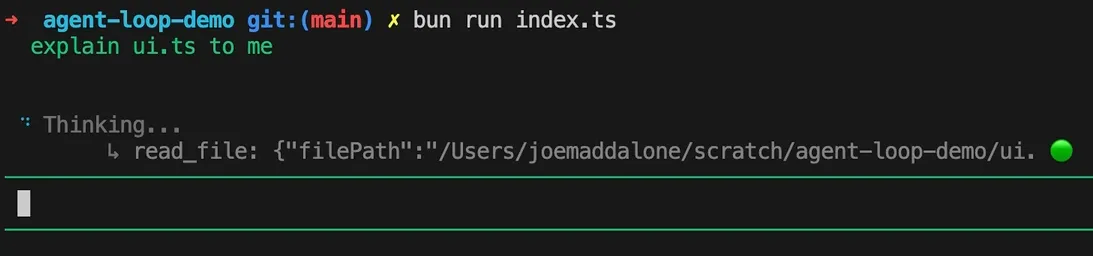
[13:48] Um now i mentioned that we’re going to pass our ui into our agent loop and the reason i want to do that is in order to uh get those little messages that i was talking about like so we’re not just sitting there waiting there’s our class and then we’re going to come down here into our on step finish and right outside well actually here we’re going to get tool results which we get for free from the on step finish and then right outside of this uh step since to do again i’m just going to drop this in what we’re doing is we’re getting that tool call and if we have a tool call we’re going to stringify its input uh cut that down to 50. then we’re going to get our output off of the uh tool results with the same index then we’re uh building up this little string i’m not a huge fan of emojis below a red dot for an arrow or an error and a green dot for success and then we’re going to set our action status to the tool name the arguments and the result and with that let’s see we don’t need read line anymore and i think we can try this guy out
[15:02] Okay so we’ve got groovy little lines we can see where our cursor is let’s say give me five writing prompts we got a little thinking spinner there’s our writing prompts i’m going to say explain ue.ts to me the other thing you can see here is we are getting our markdown formatting so you can see lost library is in bold and down here we’re getting our little actions uh thinking and reading the file cool so we got all those results and i did notice one thing it was saying it was reading a file but it wasn’t saying what file it was reading so i want to make sure that we’re capturing that information so i think ah it appears that uh anti-gravity was doing some weird stuff there and trying to overwrite my file so we’re going to try this one more time and there we go we get our file path and i am satisfied so cool not an amazing ui but we have the basic functionality we have markdown formatting we have a little thinking going on uh it’s it’s a much better experience
Transform your basic terminal interactions into a polished, developer-friendly CLI with real-time feedback and markdown formatting. This tutorial solves the pain of unstructured output and invisible AI processing by introducing a robust terminal UI (TUI) built with pi-tui and chalk. Perfect for building local AI agents, CLI tools, or any terminal application requiring clear state visibility and rich text rendering.
import {  TUI,  ProcessTerminal,  Editor,  matchesKey,  Key,  visibleWidth,  truncateToWidth,  Markdown,  Loader,} from "@mariozechner/pi-tui";import type { Component } from "@mariozechner/pi-tui";import type { ModelMessage } from "ai";import chalk from "chalk";import type { MarkdownTheme } from "@mariozechner/pi-tui";
export const uiTheme = {  borderColor: chalk.green,  selectList: {    selectedPrefix: (s: string) => chalk.cyan.bold(s),    selectedText: chalk.cyan,    description: chalk.gray,    scrollInfo: chalk.gray,    noMatch: chalk.red,  },};
export const mdTheme: MarkdownTheme = {  heading: (s) => chalk.bold.cyan(s),  link: (s) => chalk.blue(s),  linkUrl: (s) => chalk.dim(s),  code: (s) => chalk.yellow(s),  codeBlock: (s) => chalk.green(s),  codeBlockBorder: (s) => chalk.dim(s),  quote: (s) => chalk.italic(s),  quoteBorder: (s) => chalk.dim(s),  hr: (s) => chalk.dim(s),  listBullet: (s) => chalk.cyan(s),  bold: (s) => chalk.bold(s),  italic: (s) => chalk.italic(s),  strikethrough: (s) => chalk.strikethrough(s),  underline: (s) => chalk.underline(s),};
export class AgentUI implements Component {  private tui = new TUI(new ProcessTerminal());  private editor = new Editor(this.tui, uiTheme, { paddingX: 1 });  private thinkingLoader: Loader | null = null;  private currentAction = "";  private mdCache = new Map<ModelMessage, Markdown>();
  onInput?: (text: string) => Promise<void>;
  constructor(private history: ModelMessage[]) {    this.tui.addChild(this);    this.tui.addChild(this.editor);
    this.editor.onSubmit = (text) => {      if (this.thinkingLoader) return;      if (text.trim()) this.onInput?.(text);    };
    this.tui.addInputListener((d) => {      if (matchesKey(d, Key.ctrl("c"))) this.exit();      return undefined;    });
    process.on("SIGINT", () => this.exit()).on("SIGTERM", () => this.exit());  }
  start() {    this.tui.start();    this.editor.focused = true;    this.tui.setFocus(this.editor);  }
  exit() {    this.tui.stop();    process.exit(0);  }
  appendSpacer(lines: string[]) {    if (lines.length > 0) lines.push("");  }
  colorMessage(m: ModelMessage) {    return m.role === "user" ? chalk.green : chalk.white;  }
  renderAssistantMessage(m: ModelMessage, w: number) {    let md = this.mdCache.get(m);    if (!md) {      md = new Markdown(this.getMessageText(m), 2, 0, mdTheme);      this.mdCache.set(m, md);    }    return md.render(w);  }
  renderPlainMessage(m: ModelMessage) {    const message = this.getMessageText(m);    return message      .split("\n")      .map((l) => `  ${this.colorMessage(m)(l)}`);  }
  renderMessage(m: ModelMessage, w: number) {    return m.role === "assistant"      ? this.renderAssistantMessage(m, w)      : this.renderPlainMessage(m);  }
  appendThinking(lines: string[], w: number) {    if (!this.thinkingLoader) return;    this.appendSpacer(lines);    lines.push(...this.thinkingLoader.render(w));    if (this.currentAction) {      lines.push(`\t${chalk.dim("↳")} ${chalk.gray(this.currentAction)}`);    }  }
  fitWidth(lines: string[], w: number) {    return lines.map((l) => (visibleWidth(l) > w ? truncateToWidth(l, w) : l));  }
  getMessageText(m: ModelMessage): string {    if (typeof m.content === "string") return m.content;    return m.content.map((part) => ("text" in part ? part.text : "")).join("");  }
  push(m: ModelMessage) {    this.history.push(m);    this.tui.requestRender();    this.editor.setText("");  }
  setActionStatus(action: string) {    this.currentAction = action;    this.tui.requestRender();  }
  clearActionStatus() {    this.currentAction = "";  }
  makeSpinner() {    return new Loader(this.tui, chalk.cyan, chalk.dim, "Thinking...");  }
  invalidate() { }
  render(w: number) {    const lines: string[] = [];    for (const m of this.history) {      this.appendSpacer(lines);      lines.push(...this.renderMessage(m, w));    }    this.appendThinking(lines, w);    return this.fitWidth(lines, w);  }
  async think<T>(fn: () => Promise<T>) {    this.thinkingLoader = this.makeSpinner();    this.clearActionStatus();    try {      const reply = await fn();      this.thinkingLoader = null;      return reply;    } catch (e) {      this.thinkingLoader = null;      this.history.push({        role: "assistant",        content: `🔴 Error: ${e instanceof Error ? e.message : String(e)}`,      });    } finally {      this.clearActionStatus();    }  }}
Now let’s add the Ui to our Agent Loop
First import our Agent UI and remove readline
import { generateText, isLoopFinished } from "ai";import type { ModelMessage } from "ai";import * as readline from "readline";import { PARENT_TOOLS, } from "./tools";import { api, MODEL, WORKDIR } from "./config";import { api, CONTEXT_LIMIT, MODEL, WORKDIR } from "./config";import { autoCompact, estimateTokens, microCompact } from "./compact";import { AgentUI } from "./ui";Now we’ll replace the readline implementation withour new TUI.
/** INTERFACE */
const rl = readline.createInterface({  input: process.stdin,  output: process.stdout});const history: ModelMessage[] = [];
const prompt = (): void => {  rl.question(" input >> ", async (query) => {    history.push({ role: "user", content: query });    const reply = await agentLoop(history);    history.push({ role: "assistant", content: reply });    if (reply) console.log(reply);    console.log();    prompt();  });};
prompt();
const history: ModelMessage[] = [];const ui = new AgentUI(history);
ui.onInput = async (query) => {  ui.push({ role: "user", content: query });  const reply = await ui.think(() => agentLoop(history, ui));  if (reply) {    ui.push({ role: "assistant", content: reply });  }};
ui.start();
An now we just pass the Ui intour Agent Loop.
/** AGENT LOOP */const agentLoop = async (messages: ModelMessage[]): Promise<string> => {const agentLoop = async (messages: ModelMessage[], ui: AgentUI): Promise<string> => {  let stepsSinceTodo = 0;  microCompact(messages);  const estTokens = estimateTokens(messages);  if (estTokens > CONTEXT_LIMIT) {    /* compaction code here */  }  const { text } = await generateText({    model: api.chat(MODEL),    system: `...`,    messages,    tools: PARENT_TOOLS,    stopWhen: isLoopFinished(),    onStepFinish: ({ toolCalls }) => {    onStepFinish: ({ toolCalls, toolResults }) => {      const usedTodo = toolCalls.some((tc) => tc.toolName === "todo") ?? false;      stepsSinceTodo = usedTodo ? 0 : stepsSinceTodo + 1;      if (stepsSinceTodo >= 3) {        messages.push({          role: "user",          content: "<reminder>Updated your todos.</reminder>",        });      }
      const tc = toolCalls[0];        if (tc) {          const args = JSON.stringify(tc.input).slice(0, 60);          const out = toolResults[0]?.output;          const result = out          ? typeof out === "string" && out.startsWith("Error")              ? `🔴 ${out.slice(0, 50)}`              : "🟢"          : "";          ui.setActionStatus(`${tc.toolName}: ${args} ${result}`);        }    },  return text;};
Try it out! Our Agent now has a simple, but much improved terminal user interface.